
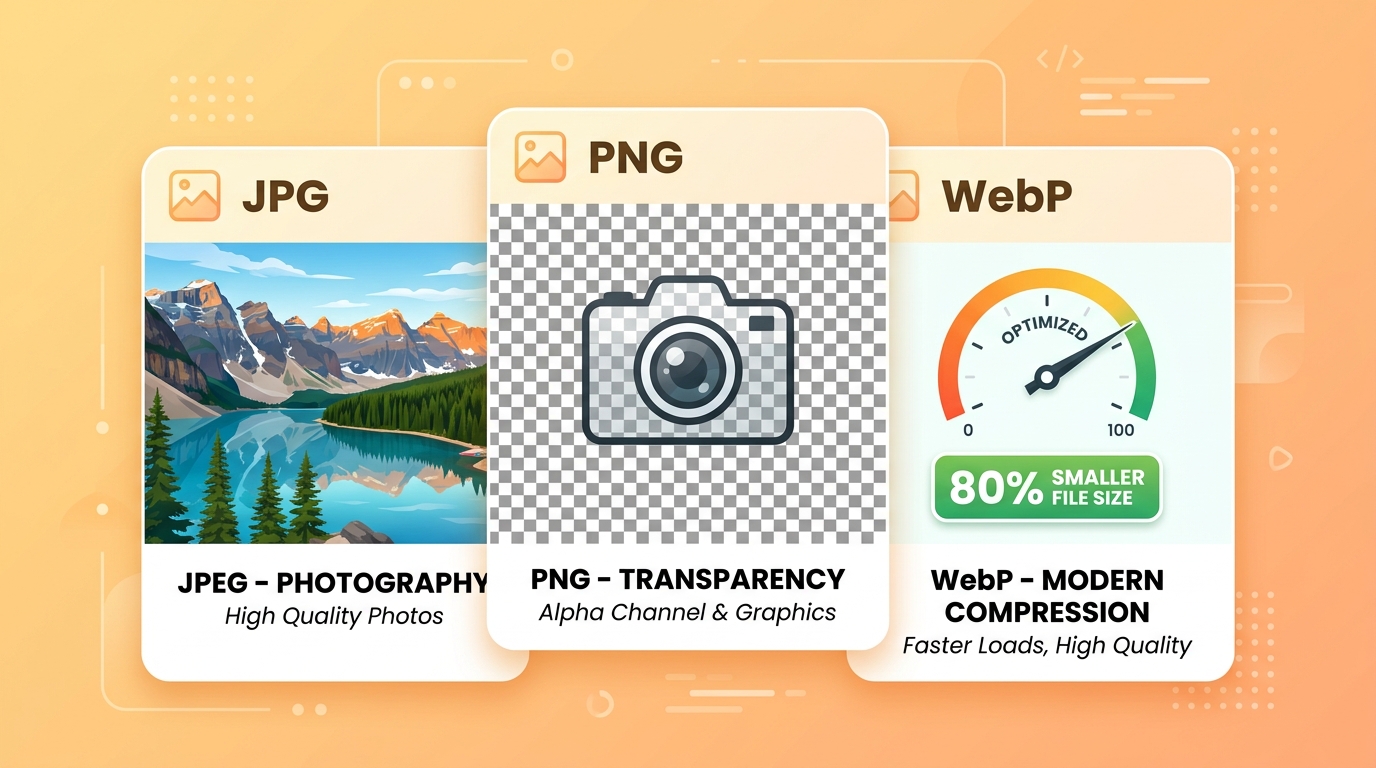
JPG vs PNG vs WebP — Which Image Format Should You Use?
You have a photo and you need to save it. Your software offers JPG, PNG, WebP, TIFF, BMP, and more. Which one do you choose? The wrong choice can mean a file that is 10× larger than it needs to be, or a photo that loses quality every time you save it.
This guide explains the three formats you will encounter most often — JPG, PNG, and WebP — and tells you exactly when to use each one.
JPG (JPEG) — The Universal Photo Format
Full name: Joint Photographic Experts Group
Extension: .jpg or .jpeg
Compression: Lossy
Transparency: No
Best for: Photographs, portraits, scanned documents
How JPG Works
JPG uses lossy compression — it permanently removes some image data to reduce file size. The compression is designed to target data that the human eye is least sensitive to, so the quality loss is often invisible at moderate compression levels.
The trade-off: every time you open a JPG, edit it, and save it again, it loses a little more quality. This is called "generation loss." For a photo you will only save once, this is not a problem. For a logo you will edit repeatedly, it is a serious issue.
When to Use JPG
- Photographs and portraits — JPG was designed for photos and handles gradients and colour transitions beautifully
- Government portal uploads — virtually every Indian government portal (NTA, IRCTC, NVSP, IBPS) requires JPEG
- Email attachments — JPG produces the smallest file sizes for photos
- Social media — platforms re-compress images anyway; JPG is the standard
When NOT to Use JPG
- Logos and icons (use PNG — JPG creates visible artefacts around sharp edges)
- Screenshots with text (use PNG — text becomes blurry in JPG)
- Images you will edit multiple times (use PNG as your working format, export to JPG only for the final version)
PNG — The Lossless Format
Full name: Portable Network Graphics
Extension: .png
Compression: Lossless
Transparency: Yes (alpha channel)
Best for: Logos, icons, screenshots, images with text, transparent backgrounds
How PNG Works
PNG uses lossless compression — the file is smaller than the raw image data, but no information is removed. Every pixel is preserved exactly. This means you can open, edit, and save a PNG file hundreds of times without any quality loss.
PNG also supports transparency (alpha channel), which makes it the only choice for logos and icons that need to sit on different coloured backgrounds.
When to Use PNG
- Logos and brand assets — sharp edges, no compression artefacts, transparency support
- Screenshots — text remains perfectly sharp
- Images with transparent backgrounds — only PNG (and WebP) support true transparency
- Working files — use PNG while editing, export to JPG for final delivery
- Signature images — a transparent PNG signature can be placed on any background
When NOT to Use PNG
- Photographs (PNG files are much larger than JPG for photos — a 2MB JPG photo might be 15MB as PNG)
- When file size is critical (government portals with 50KB limits — use JPG)
WebP — The Modern Format
Full name: Web Picture format (developed by Google)
Extension: .webp
Compression: Both lossy and lossless modes
Transparency: Yes
Best for: Websites, web applications
How WebP Works
WebP was developed by Google to replace both JPG and PNG on the web. It achieves 25–35% smaller file sizes than JPG at equivalent quality, and 25% smaller than PNG for lossless images. It supports transparency like PNG and achieves photo-quality compression like JPG.
When to Use WebP
- Website images — smaller files mean faster page loads and better SEO
- Web applications — modern browsers (Chrome, Firefox, Safari, Edge) all support WebP
- When you need both small size and transparency — WebP is the only format that does both well
When NOT to Use WebP
- Government portal uploads — most Indian portals do not accept WebP; use JPG
- Email attachments — some email clients cannot display WebP
- Older software — some image editors do not support WebP
Quick Reference: Which Format to Use
| Situation | Use |
|---|---|
| Government portal photo upload | JPG |
| Passport / ID photo | JPG |
| Logo or icon | PNG |
| Screenshot with text | PNG |
| Transparent background image | PNG or WebP |
| Photograph for a website | WebP (with JPG fallback) |
| Photograph for email | JPG |
| Working/editing file | PNG |
| Social media post | JPG |
| Signature image | PNG (transparent) or JPG (white background) |
File Size Comparison
For a typical passport photo (200×260 pixels):
| Format | File Size | Quality |
|---|---|---|
| PNG (lossless) | ~80–150KB | Perfect |
| JPG (high quality, 90%) | ~25–40KB | Excellent |
| JPG (medium quality, 70%) | ~10–20KB | Good |
| JPG (low quality, 50%) | ~5–10KB | Acceptable |
| WebP (equivalent to JPG 90%) | ~15–25KB | Excellent |
For government portals requiring under 50KB, a JPG at 70–80% quality is the sweet spot.
Converting Between Formats
PNG to JPG
Use our Resize Image to 50KB tool — it accepts PNG and outputs JPEG automatically.
HEIC to JPG (iPhone photos)
iPhones save photos in HEIC format by default. Use our HEIC to JPG converter to get a standard JPEG file.
JPG to PDF
Need to submit a photo as a PDF? Use our JPG to PDF converter.
Frequently Asked Questions
Does converting JPG to PNG improve quality?
No. Converting a JPG to PNG does not recover the quality lost during JPG compression. The PNG file will be larger but the image quality will be identical to the JPG. Always start from the original high-quality source.
Can I convert PNG to JPG without losing quality?
You will lose the ability to have a transparent background, and the first save will apply JPG compression. However, if the PNG has a white background and you save the JPG at high quality (90%+), the visible quality difference is negligible.
Why does my JPG look blurry after uploading to a portal?
The portal may be re-compressing your image. This is common on social media and some government portals. There is nothing you can do about it — the portal controls the final compression.
Is WebP better than JPG?
For websites, yes — WebP achieves better quality at smaller file sizes. For government portals and email, stick with JPG because WebP is not universally supported.
Convert Your Images Now
Need to convert or compress your images? Use our free tools:
- HEIC to JPG — convert iPhone HEIC photos to JPEG
- JPG to PDF — combine images into a PDF document