How to Create a QR Code for UPI Payment — Free Generator Guide 2025
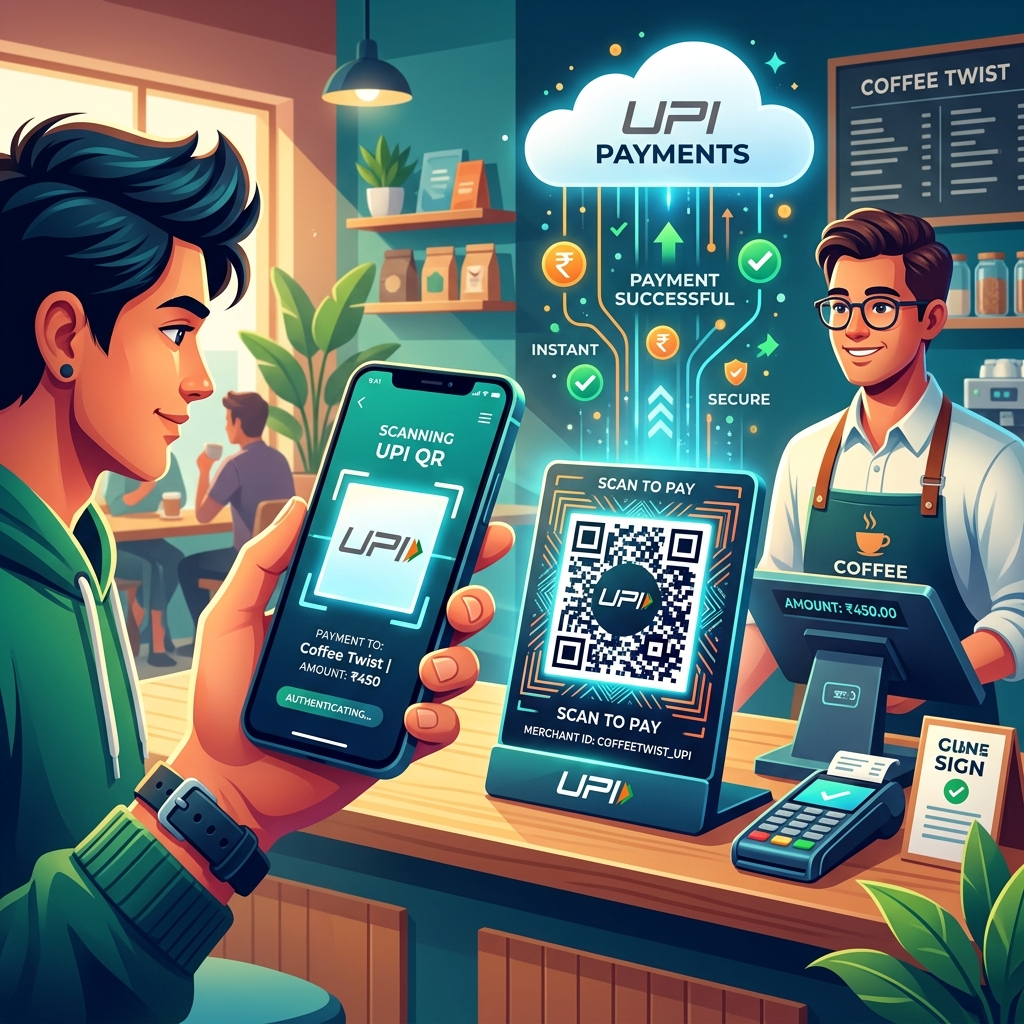
Walk into any shop in India — from a chai stall in Varanasi to a clothing store in Bengaluru — and you will see a printed QR code taped to the counter or hanging from a wall. That single square image replaced the cash register for millions of small businesses across the country. But here is what most people do not realise: you do not need a merchant account, a business registration, or even a bank visit to create one. Anyone with a UPI ID can generate a payment QR code in under two minutes, for free."According to the National Payments Corporation of India (NPCI), UPI processed over 131 billion transactions in FY 2024, driven largely by interoperable QR codes that allow payments across any supporting banking app."I have helped local shopkeepers, tuition teachers, delivery drivers, and freelancers set up their payment QR codes. This guide covers everything from generating the code to printing it properly so it actually scans reliably.
What Is a UPI QR Code, Exactly?
Definition: A UPI QR code is a scannable, two-dimensional barcode that securely encodes a user's Virtual Payment Address (VPA) or UPI ID. When scanned by a UPI-enabled mobile application, it automatically inputs the receiver's details, enabling instantaneous bank-to-bank monetary transfers without requiring manual account number entry. A UPI QR code contains your payment information — specifically your UPI ID. When someone scans it with any UPI app — Google Pay, PhonePe, Paytm, BHIM, or any banking app — your name and UPI ID appear on their screen, and they can send you money directly. The beauty of UPI's design is interoperability. A QR code generated from your PhonePe account works when scanned by someone using Google Pay. A code from your SBI account works with Paytm. There is no lock-in. One QR code handles every UPI app in India. There are two primary types of UPI QR codes, according to standard NPCI guidelines:| Feature | Static QR Code | Dynamic QR Code |
|---|---|---|
| Encodes | UPI ID only | UPI ID + Pre-filled Amount |
| Best For | Retail shops, physical stores, open donations | Freelancers, invoices, subscription bills |
| Amount Entry | Payer enters manually | Pre-filled, payer only confirms |
Static QR Code: Contains your UPI ID but no amount. The person scanning enters the amount themselves. This is what most shops use — it works for any transaction value.
Dynamic QR Code: Contains your UPI ID and a specific amount pre-filled. Useful for invoices, fixed-price items, or subscription payments. The scanner sees the amount already entered and just confirms.
How to Find Your UPI ID
Before generating a QR code, you need to know your UPI ID. Here is how to find it on the major apps:
Google Pay: Open the app → tap your profile photo → scroll down to "UPI IDs." It typically looks like
yourname@okicici or phonenumber@okaxis.PhonePe: Open → tap your profile → "UPI IDs." Format is usually
phonenumber@ybl.Paytm: Open → tap "UPI ID" on the home screen. Format is
phonenumber@paytm.BHIM: Open → tap "Profile" at the top. Your VPA is displayed directly.
Bank apps (SBI, HDFC, ICICI, etc.): Open the banking app → look for "UPI" or "Bharat QR" section → your UPI ID is displayed in settings.
Write down your UPI ID. Double-check every character — a single typo means payments go to the wrong account or fail entirely.
Method 1: Generate Using an Online QR Code Generator (Recommended)
This is the fastest method and works for everyone — you do not need to install anything or create an account.
Step 1: Open our QR Code Generator.
Step 2: Select "UPI Payment" as the QR code type.
Step 3: Enter your UPI ID (e.g.,
9876543210@ybl).Step 4: Optionally add:
- Your name (displayed when scanned)
- A fixed amount (for dynamic QR codes)
- A transaction note (e.g., "Payment for order")
Step 5: Click "Generate." Your QR code appears instantly.
Step 6: Download the QR code as a PNG image. You can now print it, share it on WhatsApp, or add it to your invoice template.
The entire process takes about 30 seconds. No account creation, no app download, and the QR code is generated directly in your browser — your UPI ID is not stored on any server.
Method 2: Generate From Your Payment App
Every major UPI app also lets you generate your own QR code:
Google Pay: Open → "Receive money" → your personal QR code is displayed. Screenshot or share it.
PhonePe: Open → tap "Receive" at the bottom → your QR code appears. You can download or share it directly.
Paytm: Open → tap "Receive" → "Share QR Code." For Paytm for Business users, there is a dedicated merchant QR section.
BHIM: Open → "Show QR" on the home screen.
The app-generated codes work fine, but they often include the app's branding and may not let you customise the amount or add a note. For a clean, brandless QR code that you control, the online generator method is more flexible.
How to Print Your QR Code So It Actually Works
A QR code on a phone screen always scans. But printed QR codes fail all the time — and it is usually because of poor printing, not a problem with the code itself.
Print at the right size: The QR code should be at least 3 cm × 3 cm. Anything smaller becomes difficult for phone cameras to read, especially in low light. For shop counters, 5 cm × 5 cm or larger works best.
Use good contrast: Print in black on white paper. Do not print on coloured backgrounds, metallic surfaces, or glossy paper that reflects light. Matte paper or plain A4 is ideal.
Laminate it: If the QR code sits on a counter where it gets wet, smudged, or scratched, laminate it. A scratched or stained QR code will fail to scan. Lamination costs ₹10–20 at any stationery shop.
Position it correctly: Place the QR code where customers' phone cameras can reach it easily — roughly at chest height, facing the customer. Avoid placing it flat on a counter where customers have to hover their phone awkwardly above it.
Test after printing: Before handing it to your first customer, scan the printed code yourself using a different UPI app. Confirm it shows your correct name and UPI ID.
Static vs Dynamic: Which One Should You Use?
For shops and small businesses: Use a static QR code (no amount). Customers buy different items at different prices, so the amount changes every time. A static code lets them enter the correct amount themselves.
For freelancers and invoices: Use a dynamic QR code (with amount). When you send an invoice for ₹5,000, include a QR code with that amount pre-filled. The client scans, confirms, and pays — no chance of typing errors.
For rent collection and subscriptions: Dynamic codes work well here too. Generate a new QR code each month with the rent amount and a note like "June 2025 Rent."
For donations and tips: Static codes are simpler. Let the donor choose how much to give.
Safety Tips for UPI QR Codes
UPI QR scams exist, and they work because people do not understand one fundamental rule: you never need to enter your UPI PIN to receive money. If someone asks you to scan a QR code and enter your PIN to "receive" a payment, it is a scam. You are actually sending them money.
Here are the safety practices:
- Never scan a QR code to receive payment. You display your code; the payer scans it. That is the correct flow.
- Verify your UPI ID before generating. A wrong ID means payments go elsewhere. Test with a ₹1 transaction first.
- Do not share your QR code with modified amount fields. If someone sends you a "return" QR code with an amount, do not scan it. Generate your own.
- Keep your original high-resolution QR image. If someone tampers with your printed code (replacing it with theirs), you can reprint from your saved file.
- Check transaction confirmations. After a customer pays, verify the amount in your UPI app before handing over goods.
Using QR Codes for Business Beyond Payments
A QR code does not have to be limited to payments. Our QR Code Generator also supports:
- Website links: Print a QR code on your business card that opens your website or Instagram page
- WhatsApp links: Create a code that opens a WhatsApp chat with your business number — popular with small businesses for orders
- Plain text: Encode your WiFi password and tape the QR code to your shop wall — customers scan and connect without asking
- vCard contacts: A QR code that saves your contact details directly to someone's phone
Frequently Asked Questions
Does a UPI QR code expire?
No, a standard static UPI QR code does not expire. As long as the underlying bank account and linked UPI ID remain active, the printed QR code will continue to function indefinitely. However, if a user changes their UPI ID or closes the associated bank account, a new QR code must be generated.
Can I use one QR code for multiple UPI apps?
Yes. UPI is interoperable. A QR code generated from any source — our generator, Google Pay, PhonePe, or your bank — can be scanned by any UPI app. You do not need separate codes for each app.
Is there a limit on how many payments I can receive?
There is no limit on the number of payments you can receive via a UPI QR code, but there are monetary limits per transaction. According to NPCI regulations, standard P2P (person-to-person) transactions are capped at ₹1 lakh per transaction. Specific categories like capital markets, collections, insurance, and medical/educational services have a higher limit of up to ₹5 lakh per transaction. Merchants with verified accounts can receive higher volumes without disruption.
Can I receive payments from someone in a different city or state?
Yes. UPI works across all banks and all locations within India. There are no geographical restrictions for domestic UPI transactions.
What happens if my QR code gets damaged or unreadable?
QR codes have built-in error correction — they can be partially damaged and still scan. But if more than 30% of the code is unreadable, it will fail. In that case, simply reprint from your saved digital copy.
Can I add my business logo to the QR code?
Yes. Our QR Code Generator lets you customise the appearance of your QR code, including colours and styling. The code remains scannable as long as the core pattern is preserved.
Generate Your UPI QR Code Now
Whether you run a shop, freelance, collect rent, or just want friends to pay you back easily — having a UPI QR code ready saves time for everyone. Open our free QR Code Generator and create yours in 30 seconds. No signup, no app download, works on any device.