TinyTool Logo

TinyTool

Tools
Widgets
Blog
About
Contact
← Back to Blog
PDF Guides

How to Convert JPG to PDF Online Free — The Complete Guide for 2026

By Harmish Patel•Published on 2026-05-29
H

Harmish Patel

Technical Writer & Document formatting expert at TinyTools.

Convert JPG to PDF for Free

Convert your photos to a single PDF document in seconds. 100% secure, browser-side processing.

How to Convert JPG to PDF Online Free — The Complete Guide for 2026

You have scanned your marksheet, saved it as a JPG, and now the college admission portal says: _"Upload documents in PDF format only."_ Or maybe your employer wants all your certificates combined into a single PDF file, and you are staring at a folder full of separate JPG images wondering how to stitch them together.

This is one of the most common file-handling problems people face daily. The good news: converting a JPG image to a clean PDF takes less than five seconds when you use the right tool. The bad news: most online converters are stuffed with ads, limit your file count, or silently compress your images until they look terrible.

This guide explains exactly how image-to-PDF conversion works, what to watch out for, and how to do it properly without losing a single pixel of quality.

Why Would You Convert a JPG to PDF?

Definition: Converting JPG to PDF involves taking a raster image file (JPG/JPEG) and encapsulating it within a Portable Document Format (PDF) container. This process preserves the exact visual fidelity of the image while standardizing the file for document submission, printing, and multi-page archiving.

Before diving into the how, it helps to understand the why. JPG and PDF serve fundamentally different purposes, and understanding this explains why portals are so particular about file formats.

"According to Adobe, the creator of the PDF format, over 303 billion PDFs were opened in Adobe Document Cloud in 2021 alone, establishing it as the undisputed global standard for document exchange."

JPG (Joint Photographic Experts Group) is designed for photographs. It uses lossy compression to keep file sizes small, which makes it perfect for sharing images on WhatsApp, Instagram, or email. But it has limitations: a JPG is a single image with no concept of pages, document structure, or text layers.

PDF (Portable Document Format) is designed for documents. It preserves layout across every device and operating system. A PDF can contain multiple pages, embedded fonts, metadata, and even form fields. When a government portal or university asks for a PDF, they want a standardised, print-ready document — not a loose image file.

Here are the most common real-world situations where you need this conversion:

  • College admission forms: Universities like DU, IGNOU, and state-level admission portals often require marksheets, migration certificates, and ID proofs as PDFs.
  • Government job applications: UPSC, SSC, IBPS, Railways, and state PSC portals almost universally require document uploads in PDF format with specific file size limits.
  • Visa and passport applications: Embassy portals and Passport Seva require supporting documents as PDF files.
  • Company HR portals: Onboarding processes at companies like TCS, Infosys, and Wipro require joining documents — offer letters, address proofs, degree certificates — combined into PDF packages.
  • Freelance invoicing: If you have designed an invoice or receipt as an image, converting it to PDF gives it a professional, printable format.

How to Convert JPG to PDF Online Free (Step-by-Step)

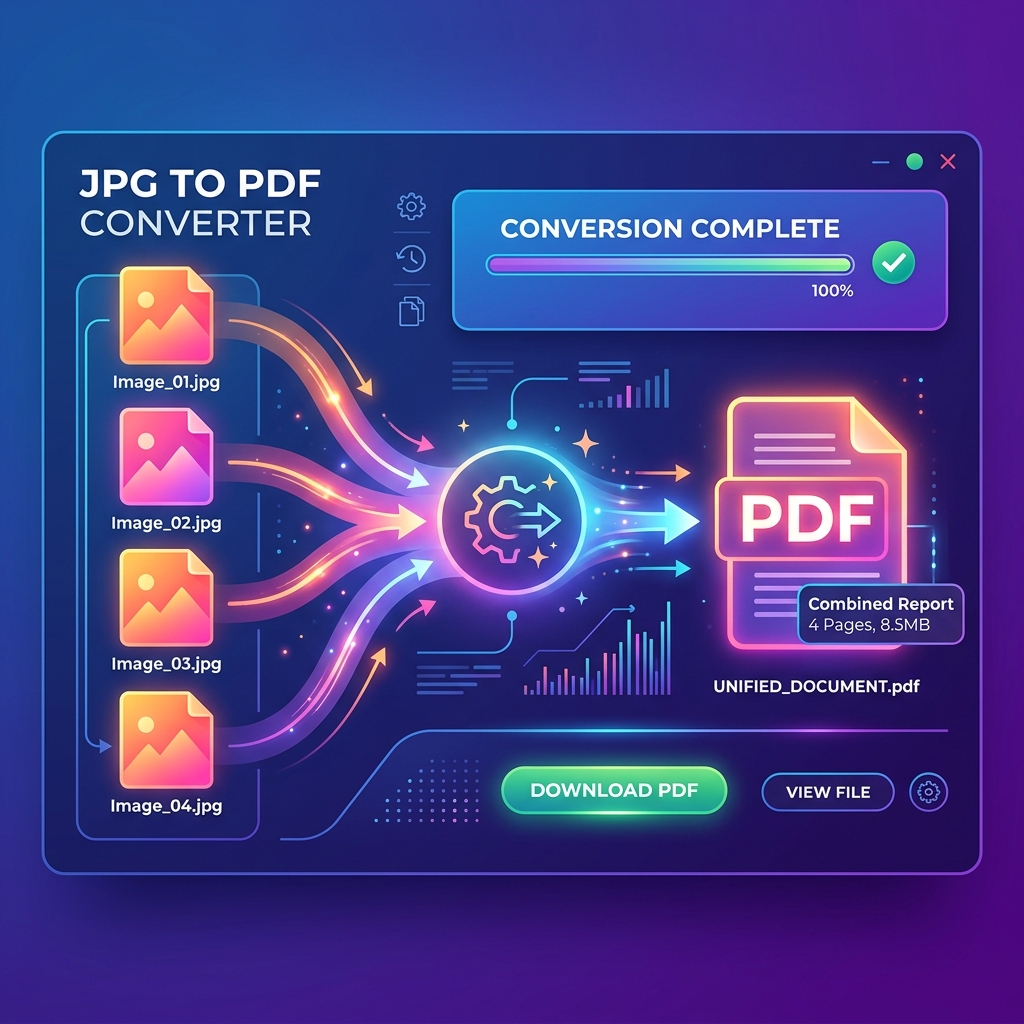
Our JPG to PDF Converter handles this in seconds:

  1. Open the tool: Navigate to the JPG to PDF converter page. No signup or account creation is required.
  2. Upload your image: Click the upload area or drag your JPG or PNG file onto the page. The tool supports files up to 20MB.
  3. Automatic conversion: The tool instantly wraps your image into a properly structured PDF document. The image is placed at full resolution on a standard A4-sized page, centered and scaled to fit without cropping.
  4. Download your PDF: Click the download button to save your new PDF file. The filename is automatically based on your original image name.
The entire process takes under five seconds for typical image sizes. There is no quality loss because the image is embedded directly into the PDF container without re-compression.

What Actually Happens During JPG to PDF Conversion?

Understanding the technical process helps you make better decisions about when and how to convert.

When you convert a JPG to PDF, the converter does not "transform" your image into something different. Instead, it creates a PDF container — think of it like a digital envelope — and places your original JPG image inside it. The image data remains identical. No pixels are changed, no compression is applied, and no quality is lost.

A well-built converter also handles these details automatically:

  • Page sizing: Your image is placed on a standard page size (typically A4 — 210mm × 297mm) so it prints correctly.
  • Orientation detection: If your image is wider than it is tall (landscape), the converter rotates the page to landscape orientation so the image fits naturally without unnecessary white space.
  • DPI preservation: The original resolution of your image is maintained. A 300 DPI scan stays at 300 DPI inside the PDF.
  • Metadata: The PDF gets proper creation metadata (title, creation date) so document management systems can index it correctly.

Common Mistakes People Make When Converting Images to PDF

Mistake 1: Using "Print to PDF" from a photo viewer

This is the most common approach, and it is also the worst for quality. When you open an image in Windows Photos or Preview on Mac and choose "Print → Save as PDF", the application re-renders the image at screen resolution (typically 72 DPI) instead of preserving the original resolution. A crisp 300 DPI scan suddenly becomes a blurry 72 DPI document. The file size drops, but so does every detail.

Mistake 2: Screenshotting the image and saving as PDF

Some people take a screenshot of their image on screen and then save that as a PDF. This is even worse than Print to PDF because you are now limited to your screen's pixel dimensions. A 4000×3000 pixel scan becomes a 1920×1080 screenshot — you have thrown away 80% of your image data.

Mistake 3: Using a converter that adds watermarks

Free online tools frequently add visible watermarks to converted PDFs unless you pay for a premium subscription. Government portals and universities may reject watermarked documents, and removing watermarks after conversion is extremely difficult.

Mistake 4: Ignoring file size limits

Converting a high-resolution photograph to PDF does not reduce its file size. If your original JPG is 4MB, your PDF will be approximately 4MB as well (possibly slightly larger due to PDF overhead). If the upload portal has a 2MB or 500KB limit, you will need to compress the image before converting, or compress the PDF afterwards using a tool like our PDF Compressor.

File Size Expectations After Conversion

Here is a realistic breakdown of what to expect:

Original JPG SizeResulting PDF SizeNotes
Under 100KB~110KBMinimal overhead
100KB – 500KB~120KB – 520KBStandard document scans
500KB – 2MB~520KB – 2.1MBHigh-res photos
2MB – 10MB~2.1MB – 10.2MBCamera RAW exports
Over 10MB~10.2MB+May need compression

The PDF wrapper adds roughly 10–20KB of overhead for the document structure, metadata, and page definitions. The image itself is not re-compressed, so there is no quality penalty.

What File Size Do Indian Portals Require for PDF Uploads?

If you are converting images to PDF specifically for portal submissions, knowing the size limits beforehand saves you a frustrating rejection loop:

PortalMax PDF SizeCommon Documents
UPSC (CSE, CDS, NDA)300KB – 2MBCertificates, marksheets
SSC (CGL, CHSL, MTS)200KB – 1MBID proof, qualification docs
IBPS / Bank PO / Clerk200KB – 500KBPhoto ID, signature
NTA (JEE Main, NEET)300KB – 1MBCategory certificates
State PSC portals200KB – 500KBVaries by state
Passport Seva2MBSupporting documents
Income Tax Portal2MB – 10MBITR attachments
IGNOU / University500KB – 2MBMigration, marksheets

Pro tip: If your converted PDF exceeds the portal's limit, do not re-scan at lower quality. Instead, convert at full quality first, then use our Compress PDF to 200KB tool to intelligently reduce the file size while keeping text and details readable.

JPG vs PNG: Which Should You Convert to PDF?

Both formats work, but they have different strengths:

Convert JPG to PDF when:

  • Your source is a photograph (marksheet photo, scanned certificate, ID card photo)

  • File size matters — JPGs are naturally smaller

  • The image does not have transparent areas


Convert PNG to PDF when:
  • Your source has text rendered on a transparent background

  • You need pixel-perfect sharpness (screenshots, digital certificates)

  • The image contains sharp edges, logos, or line art


Our JPG to PDF converter accepts both formats, so you do not need to convert between image formats first.

Privacy and Security: Where Does Your Image Go?

This is a legitimate concern. When you upload a scanned Aadhaar card, PAN card, or salary slip to an online converter, you are trusting that service with sensitive personal information.

Here is what happens with different types of tools:

Cloud-based converters (most popular tools online):

  • Your file is uploaded to a remote server

  • Conversion happens on their infrastructure

  • The file may be stored temporarily or permanently

  • Their privacy policy determines what happens to your data

  • You have no control after uploading


TinyTools JPG to PDF converter:
  • Your file is processed securely and immediately

  • No permanent storage of your documents

  • Conversion happens quickly with immediate cleanup

  • No third-party analytics tracking on your file content


For highly sensitive documents (Aadhaar, PAN, bank statements), always check the privacy policy of any tool you use online.

When You Need More Than a Simple Conversion

Sometimes converting a single image to a single-page PDF is not enough. Here are adjacent tools that handle more complex document preparation:

  • Need to combine multiple images into one PDF? Use our Merge PDF tool — convert each image individually, then merge the resulting PDFs into a single multi-page document.
  • Need to resize the image before converting? If the portal requires specific dimensions (like 3.5cm × 4.5cm for a passport photo), use our Resize by Dimensions tool first.
  • Need to compress the final PDF? After conversion, run the PDF through our Compress PDF tool to meet file size limits.
  • Need to crop out unwanted borders? Scanned documents often have dark edges or skewed margins. Use our Crop Image tool to clean up the image before converting.

Frequently Asked Questions

Does converting JPG to PDF reduce image quality?

No, converting JPG to PDF does not reduce image quality when using a proper converter. A proper converter embeds the original JPG image directly inside the PDF container without re-compressing it. The pixel data remains identical. You will not see any blurriness, colour shifts, or artifacts that were not already present in the original JPG.

Can I convert multiple JPGs to a single PDF?

Yes, you can combine multiple images into a multi-page PDF. However, our current tool converts one image per PDF. To combine multiple images, convert each image separately and then use our Merge PDF tool to combine them into a single document.

What is the maximum file size I can convert?

Our JPG to PDF converter supports images up to 20MB. This covers virtually all scanned documents, photographs, and digital certificates. If your image is larger than 20MB, it is likely an uncompressed RAW file — save it as a high-quality JPG first, which will reduce the size dramatically without visible quality loss.

Will my converted PDF work on Indian government portals?

Yes. The converter produces standard PDF files that are compatible with all major Indian government portals including UPSC, SSC, IBPS, NTA, Passport Seva, and state PSC websites. If the portal has a file size limit, you may need to compress the PDF after conversion.

Is there a difference between JPG and JPEG?

No. JPG and JPEG are the same file format. The shorter ".jpg" extension exists because older Windows versions (pre-Windows 95) only supported three-character file extensions. Modern systems treat both identically. Our converter accepts both.

Can I convert a PNG with a transparent background to PDF?

Yes. Our tool accepts PNG files as well. The transparent areas in a PNG will appear as white in the resulting PDF, since PDF pages have a white background by default.

Convert Your Images Now

Stop struggling with format errors on upload portals. Whether you are applying for a government job, submitting college documents, or preparing professional certificates, our JPG to PDF converter turns your images into clean, properly structured PDF documents in seconds. No signup, no watermarks, no file size tricks.

Prepare All Your Documents Free

Whether you need to resize images to exactly 20KB, crop a digital signature, format an Aadhaar photo, or shrink a PDF to 200KB, we have got you covered with zero-upload, client-side safety.

TinyTool

Fast, free, and secure online tools for everyday file tasks. Your files never leave your device. All processing is done in-browser.
Popular Tools
FD Calculator
Merge PDF
QR Code Generator
Instagram Profile Resizer
Company
About Us
Blog
Privacy Policy
Terms of Service
Contact
GitHub
Browse by Category
ImagesPDFsDocumentsIndia-SpecificFinancialDeveloperSocial MediaTextEducationFun
© 2026 TinyTool by Harmish Patel. All rights reserved.
Privacy Policy
Terms of Service
GitHub
Contact