
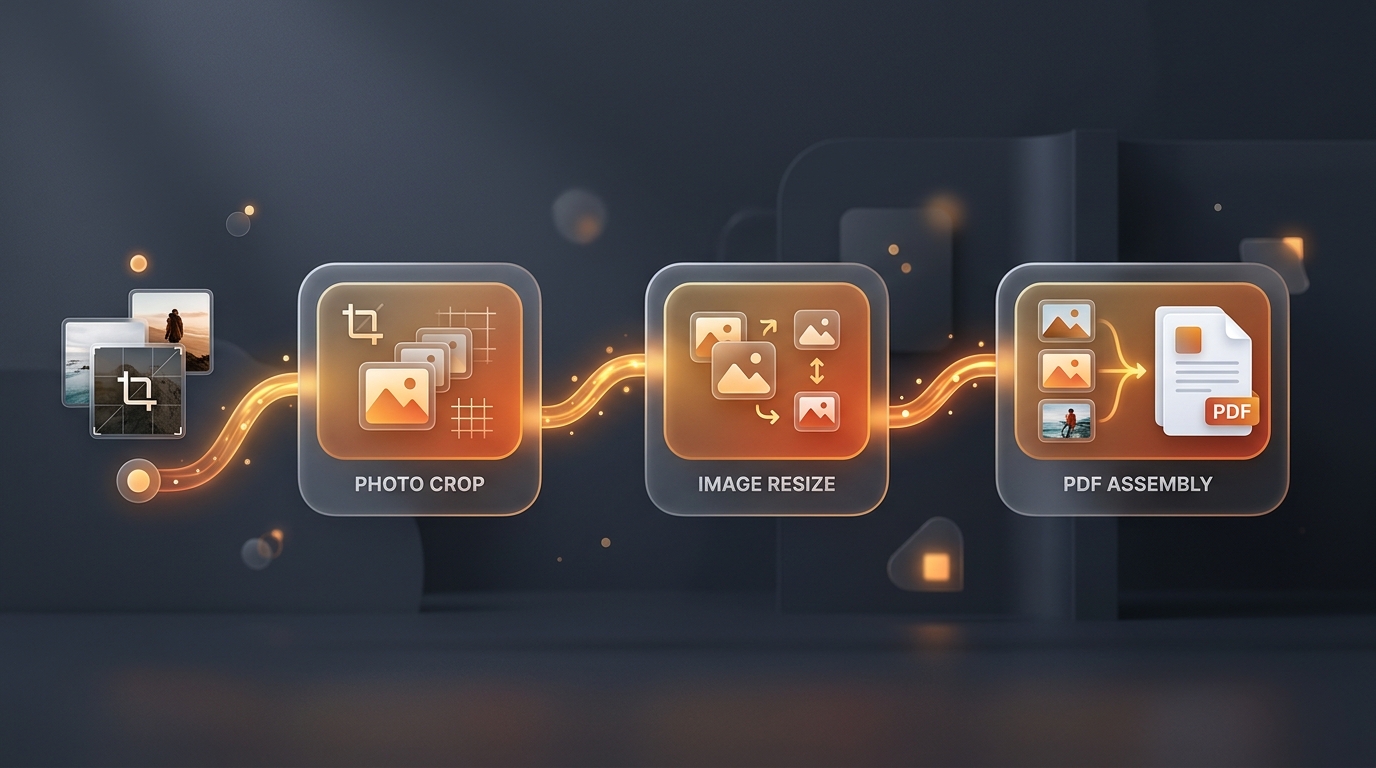
Preparing multiple image files for submission, documentation, or archiving usually requires jumping between separate web tools. A typical task—such as cropping four scanned receipts, standardizing their dimensions, and compiling them into a single PDF—forces you to upload files to a cropping tool, download the outputs, navigate to a PDF merger, re-upload the cropped images, and finally download the finished document.
This fragmented process creates file clutter, wastes bandwidth, and increases error rates when organizing multi-page files.
TinyTools Workflows eliminate tab switching by chaining multiple specialized utilities into a single, continuous browser pipeline. This guide covers how to use the pre-configured Image Crop → PDF Workflow and how to construct custom pipelines using the Dynamic Workflow Builder.
What Is a Multi-Tool Workflow?
A web utility workflow is an automated handoff sequence between discrete data transformation stages. Instead of operating as standalone, isolated single-purpose pages, workflow tools pass intermediate file buffers directly from one processing step to the next within active browser memory.
flowchart LR
    A[Upload Images] --> B[Crop & Re-Frame]
    B --> C[Resize / Optimize]
    C --> D[Compile PDF Document]
    D --> E[Download Single Output]
Traditional Tab-Switching vs. Guided Workflow Pipelines
| Feature / Step | Traditional Separate Tools | TinyTools Guided Workflow |
|---|---|---|
| Tab Management | 3–5 browser tabs open simultaneously | 1 unified guided interface |
| Intermediate File Downloads | Required after every single operation | Zero intermediate downloads |
| Local Memory Transfer | Manual re-uploading of intermediate files | Automatic memory handoff |
| Aspect Ratio Control | Manual one-by-one file processing | Interactive per-image aspect ratio presets |
| Final Delivery | Scattered files across Downloads folder | 1 consolidated, publication-ready PDF |
Step-by-Step: Using the Image Crop → PDF Workflow
The Image Crop → PDF Workflow is designed for document collation, academic form submissions, visa applications, and multi-receipt collation.
sequenceDiagram
    autonumber
    actor User
    participant Flow as /workflows/image-to-pdf
    participant Canvas as Browser Canvas API
    participant Engine as PDF Compiler

    User->>Flow: Upload up to 10 images (JPG, PNG, WEBP)
    Flow->>User: Display Crop Phase with Aspect Ratio Presets
    User->>Canvas: Adjust boundaries (Free, 1:1, 4:3, 16:9, 3:2)
    Canvas-->>Flow: Store cropped canvas buffer in memory
    User->>Flow: Click 'Build PDF'
    Flow->>Engine: Send organized image array
    Engine-->>User: Instant download of formatted PDF
Step 1: Upload Your Source Images
- Open the Image Crop to PDF Workflow.
- Drag and drop your photos into the drop zone, use the file picker, or paste an image directly from your clipboard using
Ctrl+V(orCmd+Von macOS). - The workflow supports standard formats including JPG, JPEG, PNG, WEBP, and HEIC up to 15 MB per file (up to 10 images per batch).
Step 2: Crop and Frame Each Photo Individually
Once files are loaded, click Next: Crop Images to enter the interactive cropping stage:- Aspect Ratio Selection: Choose from standard presets (Free, 1:1 Square, 16:9 Landscape, 4:3 Standard, 3:2 Photo) or adjust corner handles freely.
- Selective Cropping: If an image is already framed correctly, click Use Full Image to keep the original composition without cropping.
- Image Navigation: Move through uploaded images using the navigation arrows or thumbnails to review every frame before building the document.
Step 3: Compile and Download Your PDF
Click Generate PDF. The workflow packages all framed images in order, applies portrait-fitted page formatting, and provides an immediate download link for your compiled PDF document.Building Custom Pipelines with the Dynamic Workflow Builder
When standard workflows do not fit your specific requirements, the Custom Workflow Builder lets you design customized, multi-step processing sequences.
Available Tool Nodes in the Workflow Library
You can combine tools across four functional domains:
- Image Processing Nodes:
- Document & PDF Nodes:
- Text & AI Nodes:
Practical Real-World Workflow Blueprints
Here are three common workflow configurations that save substantial time:
Blueprint 1: Government Exam & Visa Application Prep
*Target Goal: Prepare scanned ID photos and signatures to match strict portal upload limits.*- Step 1: Crop Image → Frame face to 3.5×4.5cm (7:9 ratio).
- Step 2: Resize Image → Scale exact pixel resolution to 350×450px.
- Step 3: Compress Image → Constrain file weight strictly between 10KB and 50KB.
Blueprint 2: Expense Reports & Invoicing
*Target Goal: Combine multiple receipt photos into a single emailable PDF.*- Step 1: Crop Image → Cut away desk background and shadows from each receipt.
- Step 2: Compress Image → Optimize memory footprint to keep total document size manageable.
- Step 3: Images to PDF → Output a single, chronologically organized PDF.
Blueprint 3: Social Media Multi-Asset Packaging
*Target Goal: Adapt horizontal photography into vertical mobile stories and export previews.*- Step 1: Crop Image → Set 9:16 vertical crop.
- Step 2: Resize Image → Standardize to 1080×1920px.
- Step 3: Rotate / Flip → Align composition for Instagram and TikTok banners.
Client-Side Performance & Local Processing Architecture
TinyTools Workflows prioritize speed and user privacy by executing image cropping and raster manipulation directly inside your web browser via the HTML5 Canvas API and WebAssembly (WASM).
- Zero Unnecessary Cloud Roundtrips: Cropping, rotation, and canvas resizing run client-side on your local device CPU/GPU. Intermediate crops are not uploaded or stored on external servers during the editing phase.
- Reduced Memory Overhead: Object URLs (
URL.createObjectURL) manage memory references between steps, preventing browser tab crashes even when handling multi-megapixel camera photos.
Frequently Asked Questions (FAQ)
Can I change the order of images before generating the PDF?
Yes. During the upload and cropping phases, you can reorder your uploaded items to ensure they appear in the exact sequence desired in the final compiled PDF.Is there a limit on how many workflows I can run?
No. All TinyTools workflows are free with no account creation, no usage caps, and no subscriptions.Does cropping reduce image resolution?
Cropping removes outer pixel areas outside your selection box, retaining the original native pixel density within the selected crop frame. For maximum clarity, start with high-resolution source photos.Can I chain tools that process different file types?
The Workflow Builder automatically validates compatibility between consecutive pipeline nodes. If you connect an image source to a PDF converter, the builder dynamically displays only valid subsequent actions (such as PDF Compression or Download).Summary
Multi-step file tasks no longer require juggling dozens of browser tabs and cluttering your local storage with intermediate versions.
Visit TinyTools Workflows to explore pre-configured pipelines like Image Crop → PDF, or launch the Custom Workflow Builder to design your own tailored productivity pipeline.