
Crop Photos to Perfect Aspect Ratios: Passport, Social Media & Document Guide
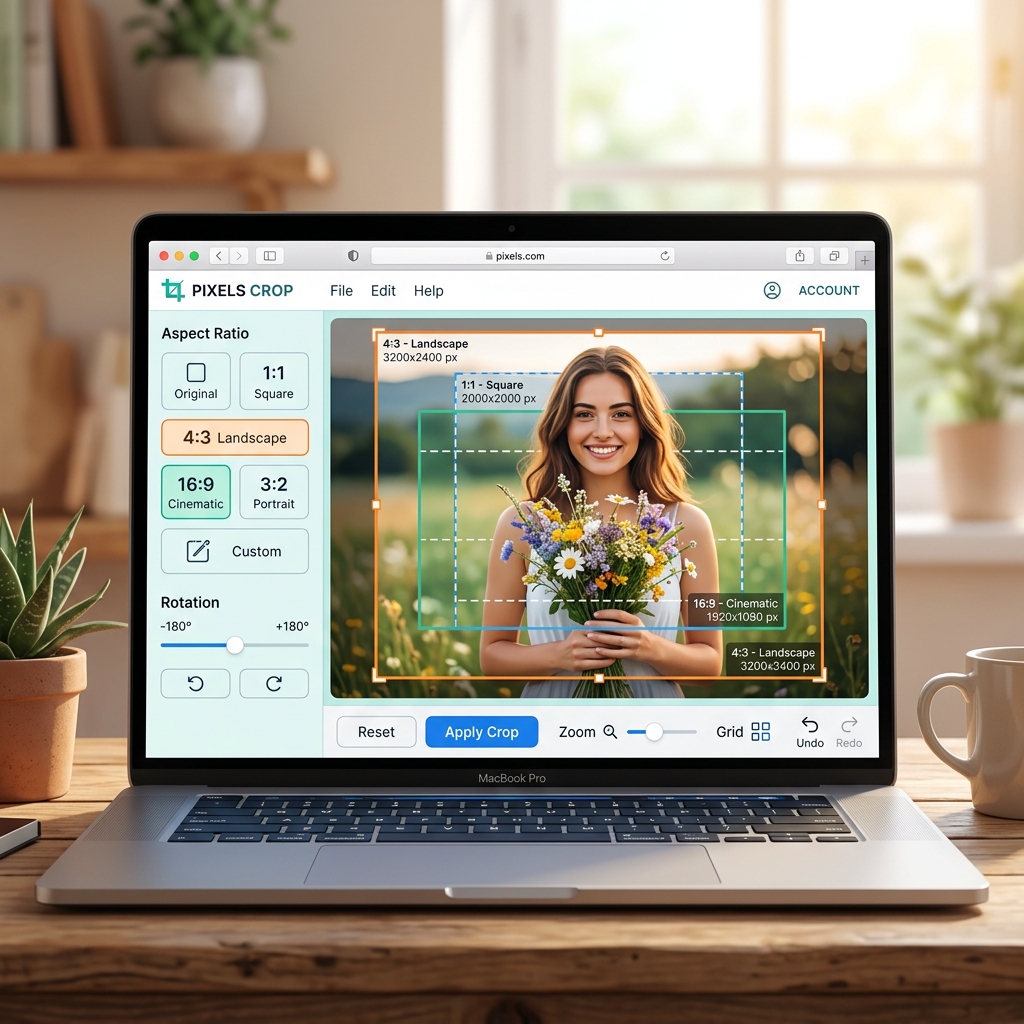
Whether you need to isolate your face for an official passport or visa photo submission, re-frame a horizontal landscape photo into a square Instagram profile picture, or remove unwanted clutter from product photography, cropping is one of the most fundamental image editing tasks.
Unlike image resizing (which scales or squishes an entire image canvas), cropping selectively cuts away unwanted outer margins to re-frame visual focus, improve composition balance, and lock exact aspect ratios.
Cropping vs. Resizing: What Is the Difference?
Many creators confuse cropping with resizing. Understanding the distinction helps you pick the right tool for your specific editing task:
| Parameter | Image Cropping | Image Resizing |
|---|---|---|
| Primary Goal | Removes unwanted outer areas & alters framing composition | Scales full image canvas up or down in physical dimensions |
| Aspect Ratio Change | Yes — alters original width-to-height proportion | No — maintains original aspect ratio proportions |
| Pixel Removal | Permanently slices away unselected outer pixel regions | Interpolates pixel density across full image frame |
| Visual Distortion Risk | Zero distortion — subjects retain natural shape | High risk if stretched without locking aspect ratio |
| Best Used For | Passport face framing, headshots, removing photobombers | Meeting KB limits, thumbnail creation, web publishing |
Standard Aspect Ratio Cheat Sheet for Social Media & Web
Using preset aspect ratios prevents platforms from automatically stretching, distorting, or cropping your images awkwardly:
| Platform & Destination | Aspect Ratio | Recommended Resolution (px) | Usage & Tips |
|---|---|---|---|
| Instagram Profile / WhatsApp Avatar | 1:1 (Square) | 1080 × 1080 pixels | Keep main subject centered inside circle avatar preview. |
| Instagram Feed Post (Portrait) | 4:5 (Vertical) | 1080 × 1350 pixels | Takes maximum vertical real estate in mobile user feeds. |
| Instagram Story / Reel Covers | 9:16 (Vertical) | 1080 × 1920 pixels | Avoid placing text in top 15% and bottom 15% header areas. |
| YouTube Video Thumbnail | 16:9 (Widescreen) | 1280 × 720 pixels | Standard HD widescreen format; keep text bold and legible. |
| Twitter / X Post Image | 16:9 or 1.91:1 | 1200 × 675 pixels | Displays fully without automatic feed cropping. |
| LinkedIn Banner / Header | 4:1 (Panoramic) | 1584 × 396 pixels | Position critical text to the right side of profile photo. |
| Indian Passport & Visa Forms | 3.5:4.5 (7:9) | 350 × 450 pixels | Facial region must fill 70% – 80% of crop box height. |
Professional Image Composition Rules for Better Crops
Cropping is an artistic tool. Applying established photography rules transforms simple snapshots into studio-quality visuals:
1. The Rule of Thirds
Overlay an imaginary 3×3 grid across your image canvas. Position key points of interest—such as human eyes, product logos, or horizon lines—along the grid lines or at their four intersection points. This creates dynamic visual balance rather than static dead-center framing.2. Avoid Cropping Across Human Joints
When cropping human portraits, never place crop borders directly across physical joints (such as knees, elbows, ankles, or neck lines). Cutting photos right at a joint creates an unnatural, uncomfortable visual effect. Instead, crop through mid-thigh, mid-forearm, or lower torso regions.3. Directional Space ("Headroom" & "Lead Room")
If a subject is looking or moving towards the right side of the frame, leave open negative space on the right side of your crop box. Giving subjects "room to look into" feels natural and visually expansive.Step-by-Step Guide: How to Crop an Image Online
Follow these easy steps to crop any photo in your web browser with 100% privacy:
- Upload Your Image: Drag and drop your image file into our free Crop Image workspace.
- Choose an Aspect Ratio: Select a preset ratio (
1:1Square,16:9Widescreen,4:5Portrait, orCustom). - Adjust the Selection Box: Click and drag the corner handles to resize the crop area. Move the box over your target subject.
- Preview & Export: Click "Crop Image" and download your newly framed photograph in JPG, PNG, or WebP format.
Frequently Asked Questions
Does cropping an image reduce its file size?
Yes. Slicing away outer pixels permanently removes pixel data from the canvas, reducing overall file KB/MB size while maintaining full clarity within the selected crop region.Is online image cropping secure for personal photos?
Yes! TinyTools processes all image cropping operations locally inside your web browser using HTML5 Canvas APIs. Your private photos, passport pictures, and documents are never uploaded to external cloud servers.How do I crop a circular photo for WhatsApp or Instagram?
Crop your photo to a square1:1 ratio first. When uploaded to platforms like WhatsApp or Google, the system automatically applies a smooth circular crop centered on your square photo.
Crop Your Photos Instantly
Frame your images with precision today. Access our free, browser-based Crop Image tool to crop, frame, and export high-quality images in seconds!